PrecisionWeb.Net
 
Shop Aesthetics

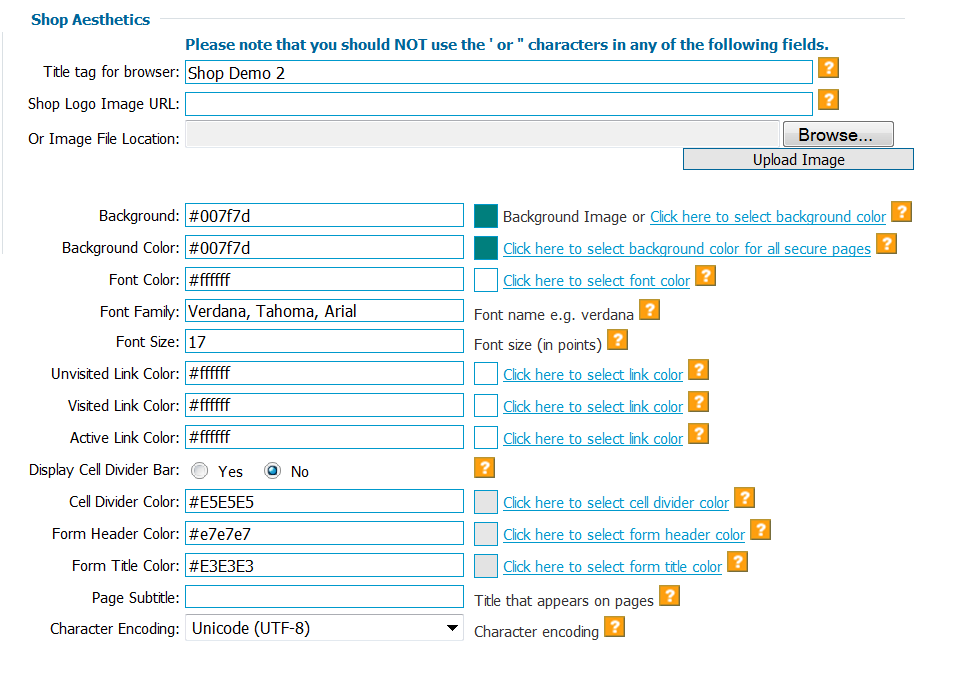
This section contains many field that will affect how your cart looks. We have designed the shopping cart to be customizable so your shop has a unique look and feel, so there are many different sections here that you can use, or if you choose, you can leave blank. So here it is, section by section.

(Click here for larger image)


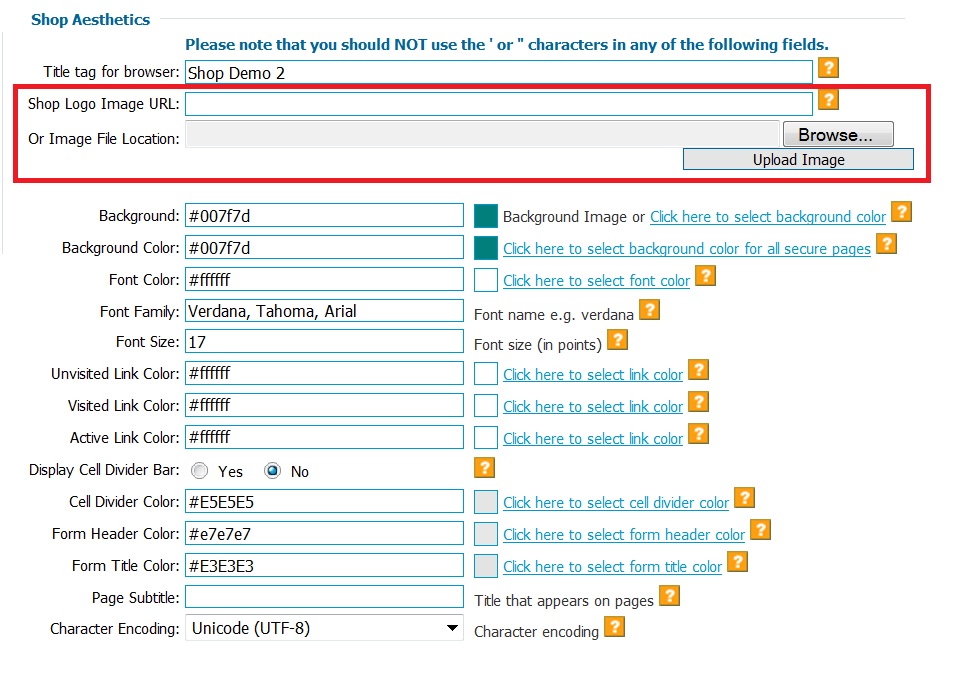
The first field is called 'Title'. This will appear at the top left of your shop pages only if you have left the 'Shop Logo' field blank in the 'Shop Details' section explained above. If you do not have a shop logo entered, the entry at the left would look like the image to the right.


(Click here for larger image)

The second field is to set a 'Background' image or a 'Background' color. The default is '#FFFFF', which is white. If you have a background image, you would enter the absolute url for that image in the box to the right of 'Background' (it would look like http://www.abctoyshop.com/background.jpg) or you could Click on the red text to the right of the box to choose a color from the color palette.

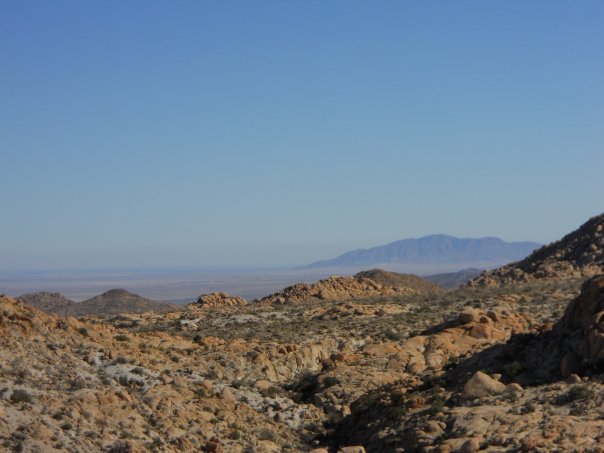
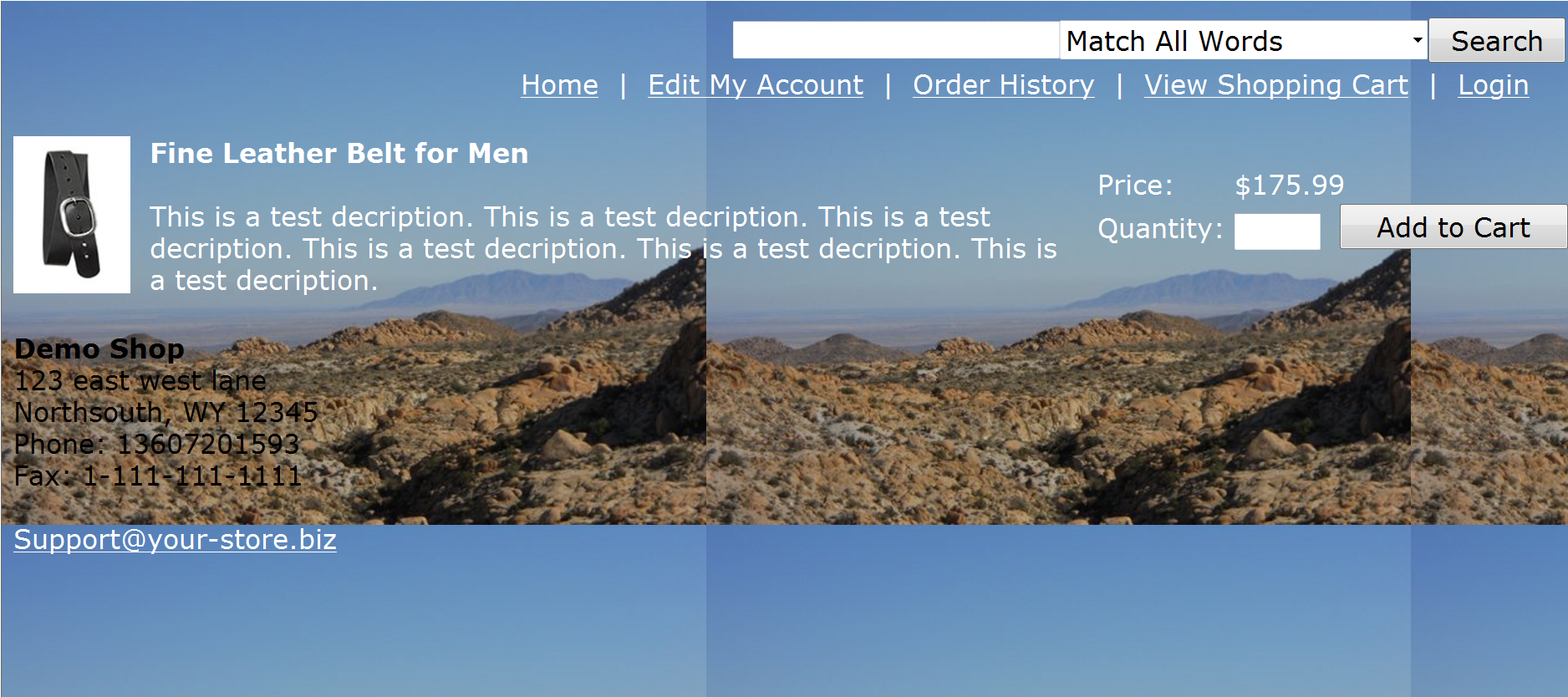
The image to the left is called background.jpg. If I set it as my background image it would create the page that looks like what is displayed to the right.

(Click here for larger image)


(Click here for larger image)

The next field is 'Background Color' for the secure pages where your customers will enter their credit card information. Since this is a secure page, your background image cannot be displayed there because it is not secure (http: address vs. https: address). In this example, I set the background color to #666666 (grey) (see picture to the left) and the result is the checkout screen displayed at the right.

(Click here for larger image)

(Click here for larger image)

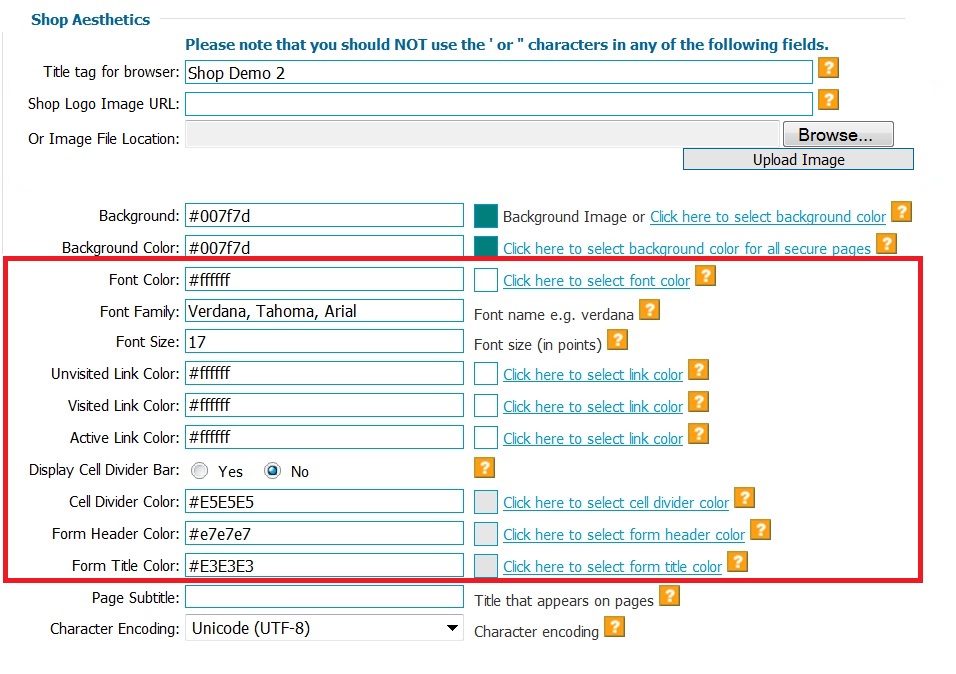
The next nine sections have to do with text color, text size, font type, and cell divider colors. It is IMPORTANT TO NOTE that most of this information is overwritten by entering custom header information. SO, if you plan on using the custom header and footer information, most of this information may be skipped.

To the right of the color fields are links that state Click here to select link color'. When you Click on them, a color pallet will 'pop-up' as shown to the right. Simply Click on the color you wish to use and it will enter that info the appropriate field for you. Or, if you know the color code you wish to use, simply type that into the field directly.

(Click here for larger image)

(Click here for larger image)

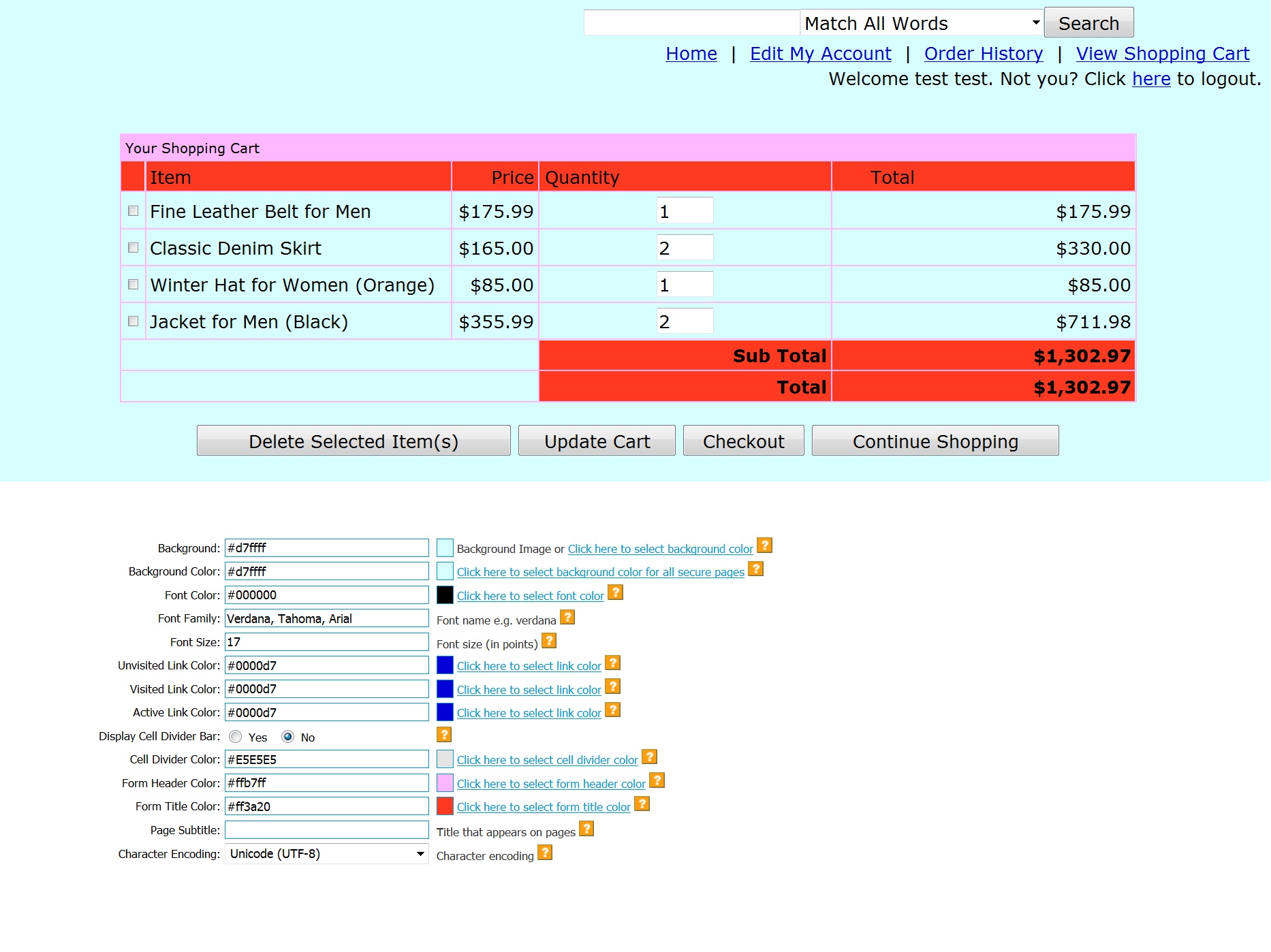
On the left we have entered color choices for all the fields listed. The image of the results are to the right. The background (#66FF00) is a nice lime-green. Font Color (#660099) is purple. The font family is a San-Serif font that is the default. Font size is 12 pt, which is a typical size. The unvisited link color (#FF0000) is a nice, bright red; an unvisited link is seen on the right 'Sports Equipment'. This is simply a link that has not been clicked on. The Visited Link Color (#0000CC) is royal blue; this is seen with the category 'Dolls'; this is simply a link that has been clicked on. The Active Link Color (#330000) is a dark, nearly-black, blue; this is rather insignificant since it only appears when the link is actually being clicked on. The Cell Divider Color (#330000) is the same, dark, nearly-black, blue color and is seen on the right as a thick bar directly above the Category links. The Form Header Color (#993300) is actually seen on the bottom picture on the right and is a nice tomato color. This does not appear on the item pages, but rather on the checkout and following pages. It is important to note if you choose a color for the Form Header Color similar to the Font Color that the type in the Form Header Field will not show up and your customers may be confused. Finally, the Form Title Color (#339900) is the secondary row on the forms. Again, it is important that this color is not closely matched to your font color. Please Click here to see a complete page on these items.

(Click here for larger image)

(Click here for larger image)

The field below the Form Title Color (image to the left) is called 'Page Title'. This information will be shown at the top left of the shop pages below the Title or Shop Logo. In the example to the right, we do not have a logo and you see the Shop Title and Page Title information displayed.

(Click here for larger image)

(Click here for larger image)

This entry puts your HTML code above and to the left of the shop item information. This is to be used in conjunction with the Customer HTML Footer below. Specific instructions on using this feature can be found at http://www.precisionweb.net/shopping_cart_FAQ.htm#Q11. View the customer html header text file we have used, Click here.

In the image to the right, the category links from the shop aesthetics have been turned to 'no' since the custom buttons on the left of the image server that purpose. Had the options been set to 'yes' they would display across the top like the search box does.

(Click here for full view)

(Click here for larger image)

If you choose to utilize the custom header and footer feature to further customize the look and feel of your cart, you will enter your footer html code (Click here for the html used in our example)

(Click here for larger image)

(Click here for larger image)

The next field is the 'Additional Custom HTML for Billing'. This information only appears on page where your customs will enter their billing and shipping information. In this example, a simple message explaining the reason for entering a password is included. Only the red text is 'Additional Customer HTML for Billing' information.

Note: the custom header does show up on this page.

(Click here for larger image)

(Click here for larger image)

This next field is the 'Custom HTML to display between items'. If you have a design you would like displayed between the items on a page, this is where you would enter that information.

In this example, we have chosen a dark red line.

(Click here for larger image)

(Click here for larger image)

This field displays the HTML on the checkout screen. PLEASE NOTE: you SHOULD NOT include non-secure images (normal images from your website) on this page or people will receive a message on the screen noting not all items on the page are secure.

In this example, we have simply included a note.

Also, the color scheme is the default scheme from the shop. If we had entered different colors for the text and boarders from above, they would show up here. The custom header information does not show up here. We could have entered a color scheme in the 'Custom HTML to display on the checkout page' by entering a <body> tag with the pertinent information listed.

(Click here for larger image)

These next 2 fields do not affect anything in the shop, they add text to the two messages that the shop sends out. You can see in the picture on the left the text entered and you can read copies of the messages, including the custom text, by clicking on the links on the right.

The first field is 'Custom text to display in the Order confirmation mail message'. Your customer will receive a message showing their order information after completing an order. This text will be at the top of the message. You may use this if there is specific information your customers should know about their orders. Click the link at right to view what the confirmation message looks like.

The next field is 'Custom HTML to display on the shipping confirmation Email message.' The image to the right shows 'View Pending Orders' screen that will be described later. As you can see though, there are 3 check boxes to the right of the order: the first is 'Paid', the second is 'Shipped' and the third is 'Notify Customer of shipment ?' If you check both 'Shipped' and 'Notify Customer of shipment ?' then Click 'UPDATE' the standard shipped notification will be sent to the customer. To view and example Click the link at the right.

Click here to read the Order Confirmation Email

(Click here to see larger image)


Click here to read the Shipped Confirmation Email

(Click here for larger image)

These final menu options allow you to choose what additional items will be shown on your shop pages. PLEASE NOTE: most users will select 'Yes' on all options. This will add navigation links in your site. If you have provided navigation links in a custom header or footer, you may choose to set these to 'No'.

The image to the right shows you what the shop would look like with all 5 options set to 'Yes'. As you can see, there is the 'Search' box to the right side; beneath the Search box are the 'Order History' link, the 'View Shopping Cart Link' and the 'Home' link. The second image down on the right shows you just that section. Please note also, there is no drop down for 'Order History'; 'Order History' is displayed if 'View Shopping Cart' is set to 'Yes' in the settings and you have turned on the 'Customer sets up account on checkout' in the 'Checkout Type'. If you had chosen to have the 'No account checkout' there would be no Order History because there are no accounts.

You also see the two drop down menus for 'Display Category Links' and 'Display Main Categories Links'. The 'Display Categories Link' will show you all that you see in the 3rd image down on the right. The 'Display Main Categories Links' does not affect the 'Main Shop' page; if it is on, it will show links to all major categories on all the pages other than the 'Main Shop' page. The 4th picture down shows this. So, in the 4th image, the top section is what is turned on by the 'Display Main Categories Links' option set to 'Yes', and the middle part of the image including the link back to the 'Main Shop' and the category name we are looking at is the 'Display Category Links'.


(Click here for larger image)

(Click here for larger image)

You will notice there is a place where you can turn on the 'Search Box' on your shop pages, but you will also notice there is 'Search Box HTML' button in the settings. If you were using the custom header and footer option and wanted the search box to be located in a special place on your pages, you could Click on the 'Search Box HTML' button and a pop up window would show you the HTML <form> you would need to enter into you html pages to display the search box. You will notice from the pictures above of the custom shop there is a search box immediately to the right of the 'Sporting Goods' button, that was created by putting the html from the 'Search Box HTML' pop up in my custom header html.

Additionally, you may choose how you would like your search results displayed, either as a link to the item, or as the complete item. The 'Full Item Display' will show the image, drop downs, add to cart button etc. This may work well if you only have a few items (1st image to the right). The 'text links' will display only links to the items that match the search. This would work well for someone with a large number of items because more results would fit on the page (2nd image to the right).

(Click here for larger image)


(Click here for larger image)

(Click here for larger image)

The next choice is whether you wish to display the items in 2 or 3 columns. Regardless of what you choose the item image will be on the furthest most left column. If you choose 2 columns, the description will extend all the way to the right side of the screen and the price and drop downs will be beneath the description. If you choose 3, the description will be in the middle and the price and drop downs will be in the far right column

Also, you may choose to have a 'regular' price and a 'sale' price. You may choose to display only the one price, or both. The top image on the right shows 3 columns with only the sale price. The bottom image shows the 2 columns with both regular and sale price.

(Click here for larger image)

(Click here for larger image)

(Click here for larger image)

Display weight in cart: if your shipping is based on weight you may wish to display this. If you have not taken the time to enter or even weigh your items, definitely select 'no'.

Products Listing Per Page: if you have large images for your items, you may wish to select fewer than 10 items to display per page. This will decrease the time it takes for pages to load. If you have a very large number of images in every category and smaller images you may wish to display more items per page.

In different areas of the cart, like on the initial checkout page, customers will see a 'Continue Shopping' link. The default is to the main shop page. You can dictate the customer be taken else where by filling in this field.

"Error redirect URL", hopefully this page will never be seen, but if a customer tries to get to a page that does not exist in the shop they will be told there was an error and there will be a link. The link default is to the shop home page. You may dictate the customer be taken else where, like your home page.

Continue Url on the finished secure page: after the customer checks out, there will be a button to 'Continue', the default for this button is back to your site home page, you may wish to direct them else were.

(Click here for larger image)

SKU/part number: in your item set up, there is a field for an SKU/part number. If you would like that displayed in the cart choose 'Show Always', if you don't use SKU/part number, choose 'Hide' and if it helps you internally but is not that important to the customer choose 'Show on checkout only'.

Checkout Questions #1, #2, #3: On the checkout page where your customers will enter their credit card numbers, there are 3 fields to ask questions, like 'how did you here about our company' or 'did anyone refer your?' etc. Simply type your questions in the fields provided and they will be displayed with a text box on the checkout screen. This information will be sent to you with the order. You may require the customer enter something in response to these questions by checking the box to the right of the question.

Confirmation Page HTML for Affiliate Tracking: (99.9% percent of you will NOT use this) Some people have affiliates that refer other people to their shop. You can have this agreement with a company like Commission Junction. If you are apart of an affiliate program, you will be given an affiliate code which will let your affiliate provider know an order has been placed. The information to past in the field would look like: <img src="https://www.commission-junction.com/track/receive.dll?Amount=##total##
&CID=69999&OID=##orderid##> So, you would paste that string into the field and the invoice total and the order number would be passed back to the affiliate provider.

Cookie Time Out: our shopping cart assigns each individual visitor a 'cart=' number. Sometimes, a customer will put some items in a cart and then not checkout; if the customer returns prior to the cookie expiring, he or she will find those items are still in his or her cart. Cookies help the cart to remember who a visitor is.

Checkout in Top Frame: Only choose 'Yes' if you are using Frames in your shopping cart. If you are using Frames and you choose 'No' then the final secure page will be in a frame and the pad lock will not show up. If you do not know what Frames are then you are probably not using them. Frames are an advanced design function that allows designers to display multiple html pages in 1 browser window.


Copyright ©1998-2006 Precision Web Hosting, Inc. | Acceptable Use Policy | Privacy Policy
Ecommerce Hosting | Ecommerce Web Hosting Plans | Ecommerce Reseller Web Hosting Plans | Dedicated Server| Free Shopping Cart | Free Shopping Cart Manual | Free Shopping Cart Features | Free Shopping Cart Faq | Web Hosting Order Forms - Ecommerce | Ecommerce Web Site Designers | Search Engine Positioning | Contact Us | Shopping Cart Payment | PayPal Pro Payment | Contact Us | Self Help| Verisign Payflow Link Compatible Shopping Cart | Web Hosting FAQ | How to Change your Nameservers | Web Hosting Contract | Site Builder Tutorials