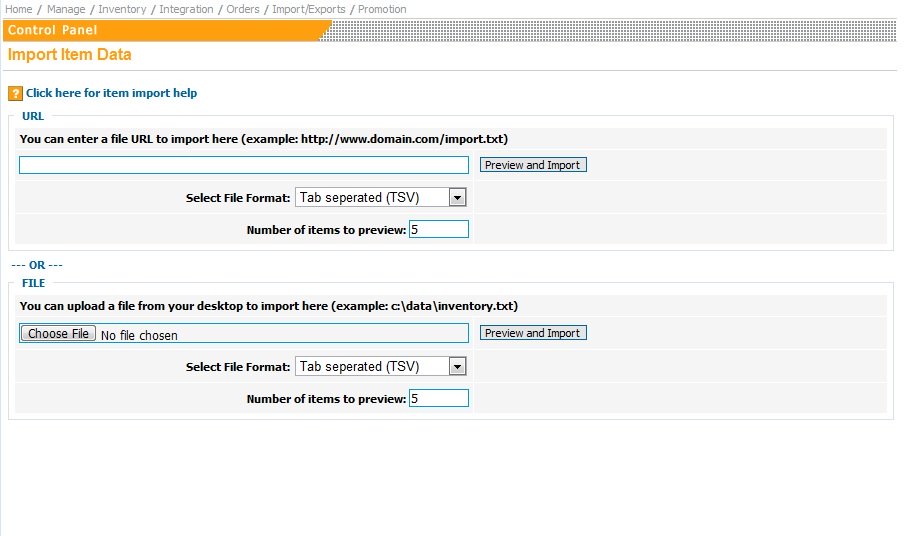
How do I import data into my shopping cart?
The easiest way to do create an importable file is to:
- From the shop/owner Categories page, create a few categories.
- From the Inventory page, create a few items for sale
- Now proceed to the item Export Item Data page, select the categories containing your items and then click the Export Checked button. This will save a file named export.txt. To make it easy to find, save it directly to your desktop. Or Click here for an example file to save to your desktop.
- Start up Microsoft Excel, or Open Office, or any other popular spreadsheet software; and open up the export.txt file you have just exported from the shop.
- Using this file as a template will help you to create the file in the correct format, add the items that you’d like to import by typing or pasting the information into the correct fields.
- After you have finished adding the item information to the spreadsheet, select to Save it as a text file.
If you are using Open Office select Save As “Text CSV”, select the option to “Edit Filter Settings”. When you proceed the “Edit Filter Settings” window will come up; in that window leave Character Set at the default; Field Delimiter should be Tab; Text Delimiter should be blank (not “); Fixed Column width should not be checked.
- From this import page, browse to the file on your local hard drive, upload, preview, and import it. Sometimes your Excel software may still have the file open when you are trying to upload it; this will cause an incorrect file type error. If you get the “wrong file type” error, open up the file using WordPad, then use the Save As to save it as a text file under another name. Or, FTP the file (in ASCII mode) to your site and specify the url to import it from.
Additional file format information:
The product database file you would like to import should be seperated by a tab , and should have the following values in the following order:
- ID – [ANY NUMBER]
- SKU NO – [TEXT VALUE – Leave blank if none]
- PRODUCT NAME – [TEXT VALUE]
- PRODUCT DESCRIPTION – [TEXT VALUE]
- IMAGE URL(Note image urls should be fully specified and begin with http://) – [TEXT VALUE – Leave blank if none] to add: Use a comma between multiple images.
- PRICE (in $) – [ANY NUMBER]
- REGULAR PRICE(in $) – [ANY NUMBER]
- CUSTOM TEXT (Specify multiple custom texts separated by ‘:’) – [TEXT VALUE – Leave blank if none]
- PRODUCT SEQUENCE – [ANY NUMBER]
- TAXABLE – [(0,N,No) / (1,Y,Yes)] (case insensitive)
- IS GIFT CERTIFICATE – [(0,N,No) / (1,Y,Yes)] (case insensitive)
- CHARGE SHIPPING – [(0,N,No) / (1,Y,Yes)] (case insensitive)
- DISPLAY PRODUCT IN CART – [Y,N]
- CATEGORY – [PARENT CATEGORY TEXT VALUE&CATEGORY1 TEXT VALUE&&PARENT CATEGORY TEXT VALUE&CATEGORY2 TEXT VALUE]
- STOCK QTY – [ANY NUMBER]
- SHIPPING – [ANY NUMBER]
- WEIGHT(in lbs) – [ANY NUMBER]
- PRODUCT LENGTH – [ANY NUMBER – Leave blank if none]
- PRODUCT WIDTH – [ANY NUMBER – Leave blank if none]
- PRODUCT HEIGHT – [ANY NUMBER – Leave blank if none]
- PRODUCT BRAND – [TEXT VALUE – Leave blank if none]
- PRODUCT CONDITION – [new,used,refurbished]
- PRODUCT TYPE – [TEXT VALUE – Leave blank if none]
- PRODUCT OPTIONS & LEVELS – [TEXT VALUE – Leave blank if none]
- ITEM IDs TO SUGGEST AT CHECKOUT – [TEXT VALUE – Leave blank if none] to add: Use a comma between multiple IDs
- HTML TO DISPLAY ON CART PAGE – [TEXT VALUE – Leave blank if none]
- ALTERNATIVE DESCRIPTION FIELD 1
- ALTERNATIVE DESCRIPTION FIELD 2
- ALTERNATIVE DESCRIPTION FIELD 3
- MPN
- ISBN
- UPC
- GENDER
- AGE
- COLOR
- SIZE
- MATERIAL
- PATTERN
- LOCATION
|